| 10000 | Communication with backoffice lost. This warning is caused by a (temporary) network issue and the charger could come online after some time. | - The charger can still charge an EV in offline mode, if the RFID tag is known by the charger for offline charging.
- If this warning is caused by a temporary network issue, the charger will usually come online after some time.
- Verify if the charge point ID has been accepted by the backoffice. If this is the case, and the warning persists, follow the steps below on location.
- Verify if the charger is properly connected to the desired network. This can be performed by going to the web interface and open the settings --> Network tab. Verify if the desired means of connection has been enabled.
- If connected to Mobile Network: verify if the SIM card is read out and is connected.
- If the SIM is read out, but the charger is disconnected: contact your provider to verify the whether the SIM card has been activated
- If the SIM cannot be read out: switch off the mains power supply, open the charger, and install the SIM card correctly. - If connected to WiFi: read the WiFi signal strength in the Diagnostics page. If this is below -70 dBm, improve it by placing a WiFi extender or connect the charger via LAN
- If connected to LAN: check the connection of the ethernet cable
- If this error persists, download diagnostics if possible and contact service. The diagnostics can be downloaded in the web interface by browsing to System --> Diagnostics
| R1.2+ |
| 10001 | Offline message storage full. This will happen when the charge point is offline for significant time and 100 transactions have been executed while being offline. | - Ensure that the backoffice connection will be restored. The charger will then communicate all locally stored charging sessions and accept charging sessions again.
| R1.3+ |
| 10002 | Backoffice DNS query fail. The DNS server cannot be reached, or the hostname is invalid leading to a situation where the IP of the backoffice server cannot be resolved. | - Check and improve the internet connection. See the solution on warning code 10000
- Verify with the CPO if the backoffice URL is correctly inserted
- Verify with the CPO if the routing allows connection with the DNS server
| R1.3+ |
| 10100 | Incomplete commissioning; the installer did not complete commissioning in the web interface | - Instruct the installer to complete the commissioning
- If the installer is not present anymore, adjust the installation settings via OCPP (if the charger is online)
- If the charger is not yet online because commissioning has not been finished, instruct an installer to go back to the charger and finish the commissioning procedure
| R1.2+ |
| 10101 | The persistent storage is almost full. | - Contact customer service
| R1.3+ |
| 10102 | Fallback firmware has been activated
| - Power cycle the charger
- If the warning is not resolved, upload a firmware package. This can be done in the web interface (in the 'System' tab) or over the air via OCPP
- If this error persists, please contact customer service
| R1.3+ |
| 10103 | R1.3+ |
| 10104 | R1.3+ |
| 10250 | Thermal derating limit reached; the charger became too hot internally which causes the charging rate to drop to a safe current or the charger will pause the charging session. In this way, the lifetime of the components is guaranteed. | - The charger will continue the charging session on a safe current value
- When the charging session has paused, the charger will continue the charging session after the temperature has decreased to a safe value
| R1.2+ |
| 10251 | Group load balancing communication failure; Communication between chargers has been lost in the situation of group load balancing. The chargers that do not have active communication with the leader will continue charging with the configured fallback current | - Instruct an installer to go to the parking lot with the chargers and check the data cables used for group load balancing. There is a possibility that one of the cables have been broken. This holds for both the daisy-chain and the ethernet option for group load balancing.
- Update the firmware to the newest version. Note that all chargers must be on the same firmware, for optimal performance of the group.
| R1.2+ |
10260
| No plausible CT value measured for phase 1. This implicates that the CT coil on phase 1 is not properly connected with the charger. | - Check the cable connection of the CT coils to the distribution block and replace or re-insert if necessary.
- Check the cable connection from the distribution block to the charger and replace or re-insert if necessary
Note: gently push in the connector for CT on the charger, using a 2 mm screwdriver. | R1.2+ |
| 10261 | No plausible CT value measured for phase 2. |
| 10262 | No plausible CT value measured for phase 3. |
| 10263 | HomeWizard dongle has been activated in the past, but cannot be found. The system cannot reach the IP address of the HomeWizard dongle. | - Observe whether the HomeWizard is connected with the router. If this is not the case, re-establish the connection.
- Observe whether the HomeWizard is inserted in the P1 port of the smart meter. If this is not the case, insert the HomeWizard dongle.
- Insert the power supply to the dongle if this is not connected to any power supply.
| R1.3+ |
| 10264 | The measurement device that reads out the smart meter does not provide sufficient information about the consumed current or power. The smart meter might not be compatible with the required smart meter standard (DSMR). |
- The measurement source cannot be used for one or more of the specific current limiters:
- Dynamic load balancing (missing current)
- Solar charging (missing power)
- Household power limit (missing power) - Another warning will go along this warning indicating which limit is facing issues. Please refer to this warning to check on solutions.
| R1.3+ |
| 10265 | The supported IUNGO P1 extender is not properly installed, and the WLAC cannot read out the communicated measurement values. | - Verify whether the P1 extender is properly connected
- Verify correctness of the RS-485 connection in the charger. Ensure that the + and - on the mainboard are properly connected:
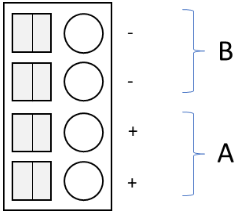 - Verify whether the + and - are properly connected to the connector of the extender.
- Verify whether the extender has been connected properly to the P1 connector of the smart meter
- Verify whether the cable between the extender and the P1 connector of the meter is a 6-pole RJ12, and not a 4-pole RJ11.
- Verify with your network operator if the P1 port on the smart meter has been activated.
- If the provided solutions did not solve this warning, there might be an issue with the hardware of the P1 extender or with the P1 port on the smart meter.
| R1.4+ |
| 10266 | The charger measured an undervoltage on phase 1. The maximum value to trigger this warning is set in the backoffice with default value at 90% of the rated voltage (207 V). This undervoltage could lead to undesired behavior. | - An undervoltage on the power line can occur in some occasions. The warning can be resolved over time.
- If this warning occurs frequently, contact the grid operator to inform them about the undervoltage.
| R1.4+
|
| 10267 | The charger measured an undervoltage on phase 2. |
| 10268 | The charger measured an undervoltage on phase 3. |
| 10269 | The charger measured an overvoltage on phase 1. The minimum value to trigger this warning is set in the backoffice with default value at 110% of the rated voltage (253V). This overvoltage could lead to undesired behavior. | - An overvoltage on the power line can occur in some occasions, especially when a significant number of PV installations are present and connected to the same grid connection. The warning can be resolved over time.
- If this warning occurs frequently, contact the grid operator to inform them about the undervoltage.
| R1.4+
|
| 10270 | The charger measured an overvoltage on phase 2. |
| 10271 | The charger measured an overvoltage on phase 3. |
| 10272 | Modbus TCP energy meter connection cannot be established. | If Modbus meter is directly connected to the charger:
- The ethernet settings must be static. The IP address must be in the same range, but not the exact same number. Example: Modbus meter has IP address 198.168.1.1, then the charger must have a static IP address configured of 198.168.1.x, where x is not 1
- The gateway of the charger must be empty.
- If the warning persists, follow the steps below.
If Modbus meter is connected to the charger via the local network: - Check if meter is powered and connected to the network.
- Check IP configuration in system / networking of the charger.
- Check IP configuration of the energy meter.
- Check network cabling or WLAN connection.
| R1.5+ |
| 10273 | Modbus TCP energy meter read failure | - Follow the steps explained in warning 10272.
- Check if the configured Modbus meter type corresponds with connected Modbus meter type.
- Check if Modbus meter is using factory settings. If this is not the case, reconfigure the Modbus meter.
- Check on Modbus meter if it is reading correct data
|
| 10274 | Dynamic load balancing fallback current is active. The source used for dynamic load balancing cannot be read. | - Problem is source dependent: CTs, HomeWizard, Modbus TCP.
- Follow the solutions for the other warnings regarding measurement sources (10260-10262 for CTs, 10263 for HomeWizard, 10265 for IUNGO P1 extender, 10272-10273 for Modbus TCP meter)
|
| 10275 | Dynamic load balancing is incorrectly configured. | - Check if a valid source is supplied to dynamic load balancing
- Check if the facility/household current limit is correctly installed, a rating of 0 is invalid
|
| 10276 | Solar charging is enabled but is not supported on this hardware model. | Solar charging is not supported on hardware that does not have an integrated energy meter
|
| 10277 | The selected source for solar charging cannot provide the required information. | Solar charging needs to be able to read the power from either:
- HomeWizard P1 meter
- HomeWizard 1-phase kWh meter
- HomeWizard 3-phase kWh meter
- Modbus TCP meter
- Modbus RTU meter
- IUNGO P1 extender
Other sources are not supported.
|
| 10278 | Too many followers detected for performing group load balancing | The maximum size for a group is 32 when connected via RS-485 daisy chain or 100 when connected via ethernet. Decrease the group size when the group is bigger than the given numbers. | R1.6+ |
| 10279 | Household power slider cannot be used. The power consumption of the household cannot be read out by the measurement source and communicated to the charger | - Ensure that the measurement source is properly connected (see 10263 for HomeWizard, 10265 for IUNGO P1 extender, 10272-10273 for Modbus TCP meter)
- Ensure that the charger can read out the power from the measurement source. Validate whether both the charger and the measurement source are connected to the same local network
| R1.6+ |
| 10280 | The measurement source cannot be reached. Reasons can vary depending on configured source type. The charger will operate with the set fallback current. | CT: Reading the meter chip failed
- Reboot the charger.
- If problem remains, return the charger or suggest using another measurement source.
HomeWizard: Error will not occur
P1 Extender: Error only occurs if no rs485 connector is installed (Not applicable on currently installed hardware)
Modbus RTU: If two or three different Modbus RTU meters are configured (only possible via OCPP)
Modbus RTU + TCP: If the provided modbus settings are incorrect (only possible via OCPP):
- Wrong modbus type
- Invalid settings. Please let them doublecheck the configured settings.
If issue remains, perform a factory reset on the modbus measurement source
| R1.7+ |
| 10300 | Roaming disabled on the charge point, leading to potentially no connection with the backoffice when only SIM is inserted | - Disable Mobile network in the web interface if this warning occurs but no SIM is inserted. This can be done by browsing to Settings --> Network
- This warning could be given while being connected to the backoffice with a non-roaming SIM. Then the charger can operate as expected.
- Instruct the end user to perform a power cycle when this warning is given and there is no connection with the backoffice
| R1.2+ |
| 10301 | Clock not synchronized when attempting to establish a websocket connection with the backoffice.
The system could possibly not reach the NTP server URL (which is the server that the system uses to synchronize the time with). This can occur when the system operates in a closed VPN network, or when there is no network connection available. | - Ensure that the charger is connected to the internet.
- Ensure network access to the default NTP server URLs. This warning might occur if the SIM card or router is operating on a private VPN.
- Alternatively, the NTP server can be configured via the backoffice. This can be done with the OCPP configuration key NtpServer2.
- NOTE: When the NTP server URL has been changed to another value, Eichrecht compliance cannot be guaranteed. The Eichrecht requirements state that a time server from a member from the CCTF (e.g., PTB) must be used to synchronize the time.
| R1.3+ |
| 10302 | NTP DNS query failed. The DNS server cannot be reached, or the hostname is invalid leading to a situation where the IP of the NTP server cannot be resolved. | - If connected with WLAN or mobile network: improve the internet connection by using e.g., an ethernet cable, if applicable.
- If connected with Ethernet: check the wiring of the cable.
- If Ethernet or WLAN is used: check whether the routing allows connection with the DNS server and the NTP server URL.
| R1.3+ |
| 10303 | LTE modem initialization failed | - Reboot the charger first
- Follow the troubleshooting steps in warning 10304
- If this warning persists, please contact the Peblar customer service.
| R1.3+ |
| 10304 | The system could not detect the SIM card. This might mean that the SIM card is damaged, or that the SIM card has been removed while the system is configured to have a SIM card | - Insert a SIM card, if there is none placed. Perform this action with the power off.
- If a SIM card is not inserted: disable mobile network in the web interface. This can be found in Settings --> Network.
- Remove the SIM card and remove dirt or dust, if present. Insert the SIM card again after this is done
- Insert another SIM card if this warning persists. Perform this action with the power off.
- If the warning still persists, contact the Peblar customer service.
| R1.3+ |
| 10305 | The SIM PIN does not match with the configured value in the system | - Insert a SIM card that has a value for the SIM PIN matching with the one that has been communicated with Peblar.
- If a SIM card is not inserted: disable mobile network in the web interface
- If there is no other SIM available, the installer can adjust the PIN code of the SIM to the value that has been communicated with Peblar by inserting it in their phone. The Peblar default value is {empty}
| R1.3+ |
| 10306 | Modem failure | - If a SIM card is not inserted: disable mobile network in the web interface
- Reboot the charger
| R1.4+ |
| 10307 | Narrow-band IoT network is activated, leading to slow network | - The product should operate with NB-IoT network. So no mitigation is required when the system is operating as desired and this warning occurs.
- To improve the mobile network connectivity, browse to the Network tab in the web interface and disable narrow-band IoT in the Mobile Network subtab.
- Disable NB-IoT in the backoffice setting the configuration key MobileNetworkNBIotEnabled to false
| R1.3+ |
| 10400 | Relay cycle limit reached in a 15-minute window. (The main relay toggled at least 3 times in a 15-minute rolling window) | - Just wait, charging is allowed and restarted again after at most 15 minutes.
- If charging doesn't automatically restart, confirm if WakeupEvPulseInB2 is set to true.
- If charging did not start with WakeupEvPulseInB2 set to true, re-plug the charging cable.
| R1.7.1+ |
